
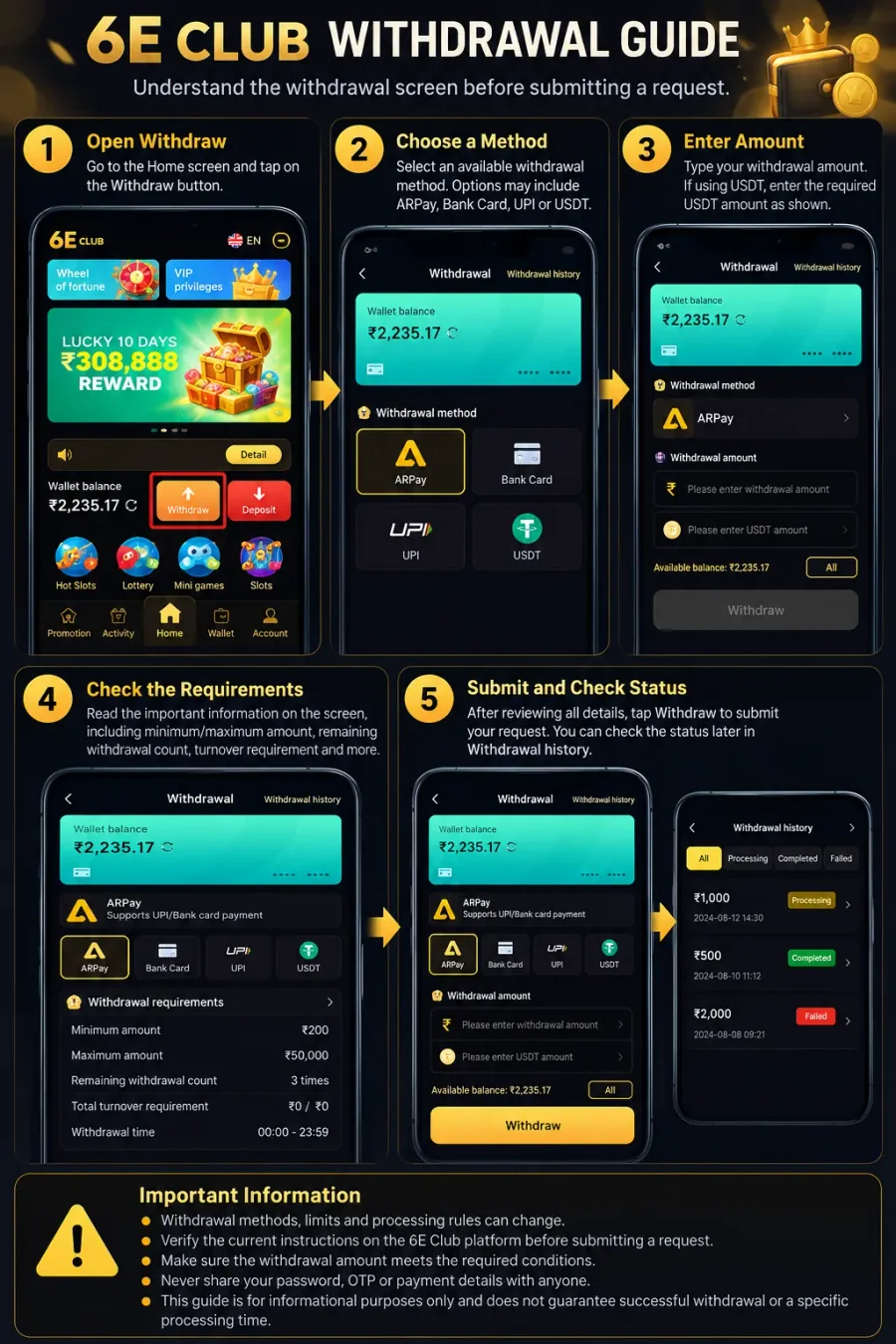
6E Club withdrawal infographic guide

Guide · 2026

6E Club Withdrawal Guide: How to Withdraw and Track a Request

Before submitting a request, check the available balance, choose the correct withdrawal method, and read the requirements on the withdrawal page. A small mistake in amount or payment details can make a request harder to resolve.

Open Withdraw in your account

Sign in, then use Withdraw from Home or Wallet and follow the steps below.

Open 6E Club

Before You Request a Withdrawal

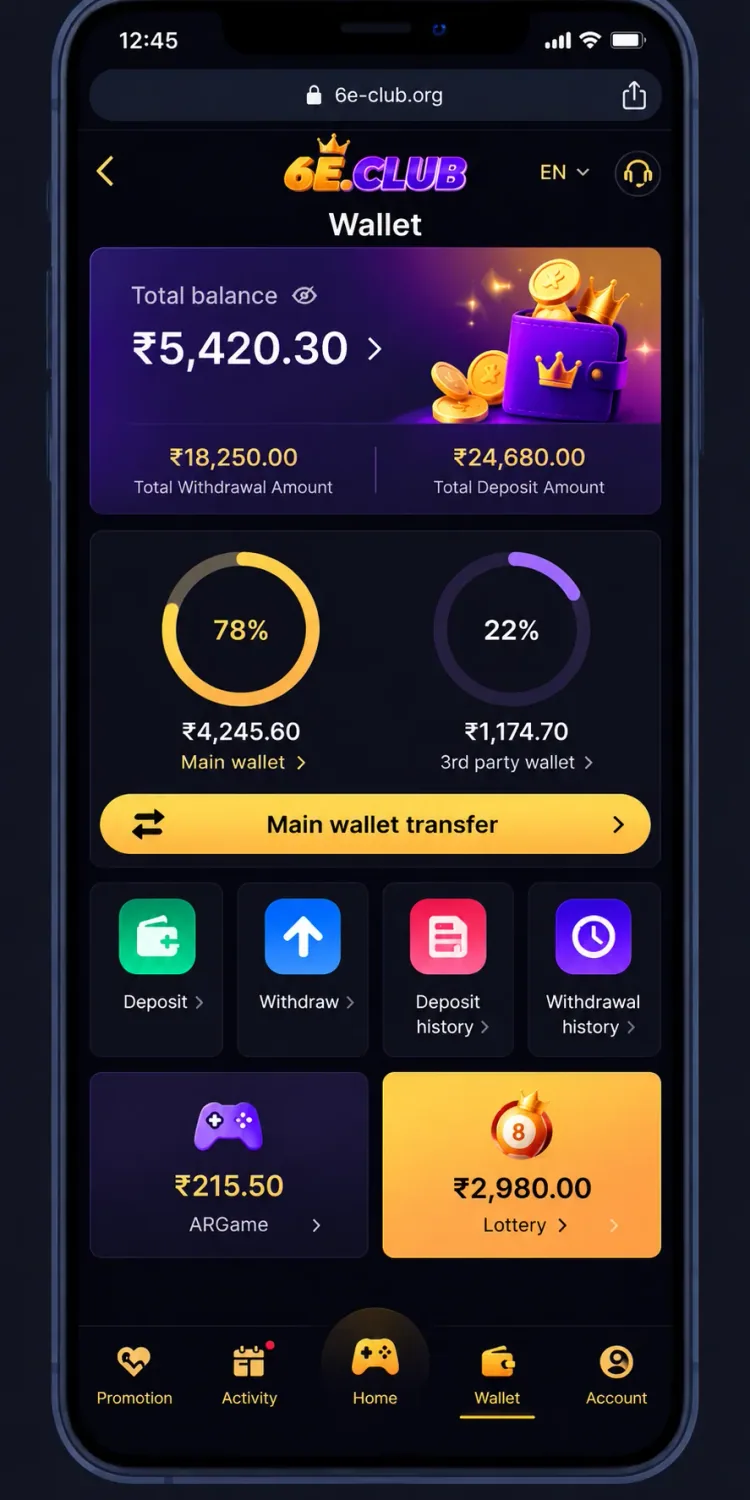
Start by opening Withdraw from the Home screen or Wallet. Check the available balance and read the on-screen instructions before choosing a method.

6E Club wallet screen before opening Withdraw

The screen may show a minimum amount, maximum limit, remaining attempts, turnover conditions, or permitted hours. These can change — use the current values in your account, not an old screenshot or third-party article.

Also confirm that registered bank, UPI, or USDT details match the method you intend to use, especially if you recently changed them.

6E Club Withdrawal, Step by Step

Follow these steps carefully. Exact labels can vary with the live interface.

  1. 1

    Open the Withdraw Page

    Open the 6E Club interface and select Withdraw. The page typically includes a balance panel, payment-method options, amount fields, and withdrawal instructions. Check that you are on the correct page before entering any payment information.

  2. 2

    Select an Available Withdrawal Method

    The interface may include ARPay, Bank Card, UPI and USDT. Availability can depend on your account. Choose the method you intend to use and read its on-screen instructions — do not assume every method works the same way.

  3. 3

    Enter the Withdrawal Amount

    Enter the amount in the withdrawal field and check the displayed minimum and maximum limits. If an All option fills the field, review that amount before submitting. Your full displayed balance may not all be withdrawable if separate conditions apply.

  4. 4

    Review the Payment Details

    Confirm the selected method and registered details. For bank withdrawals, verify bank information. For USDT, carefully check wallet address and network. If anything looks unfamiliar, stop before continuing.

  5. 5

    Read the Withdrawal Requirements

    The page may show minimum/maximum amounts, turnover, withdrawal frequency, or permitted hours. If a requirement is unmet, understand what is missing before trying again. Do not assume another deposit will automatically unlock a withdrawal.

  6. 6

    Submit the Request

    After reviewing amount, method, and details, use the Withdraw button once. Wait for the response. Avoid repeating submissions while the first request is still processing.

  7. 7

    Check Withdrawal History

    Open Withdrawal History to review status information. Keep any reference number or confirmation. If the status is pending or processing, wait before starting another request. If it failed, read any explanation and follow the relevant help topic.

Choosing a Withdrawal Method

The right option depends on what is available in your account and whether you can verify destination details.

ARPay

Select ARPay only if it is available and you understand the instructions after selection. Check payment details and conditions before submitting.

Bank Card

Confirm registered bank information shown by the platform. If details need changing, use the account or help option — do not guess into the withdrawal form.

UPI

Review registered UPI details before confirming. Never share your UPI PIN or banking password with anyone claiming to process a withdrawal.

USDT

Verify amount, destination address, and network. Crypto transfers can be hard or impossible to reverse. Never send funds to an address from an unverified helper.

Entering the Withdrawal Amount

Enter the amount you want, then check the displayed minimum and maximum. If an All option fills the field, review that value before submitting.

For USDT, the screen may ask for both an account-currency amount and an equivalent USDT amount. Follow the platform’s conversion fields rather than estimating yourself.

Understanding Withdrawal Requirements

Conditions are not necessarily the same for every account or method. Always read the current page.

Minimum and maximum

If your amount is outside the displayed range, the form may block submission. Check limits before entering values repeatedly.

Turnover requirements

If turnover conditions appear, read the explanation and progress shown. A displayed balance is not automatically withdrawable.

Remaining withdrawal count

The page may show how many requests remain in a period. Read what period the count covers and when it resets, if explained.

Withdrawal hours

If permitted hours are listed, follow them. Do not rely on an old guide for operating hours.

Checking Withdrawal History

Withdrawal History helps you see whether a request was submitted, is still processing, or was marked unsuccessful. Review amount, date, method, and any reference. Keep a record of the status so you can compare updates later.

Why a Withdrawal May Fail or Be Delayed

Start from the status shown by the platform — the amount alone does not explain every problem.

Withdraw button disabled

Check whether the amount is complete and meets limits. Review messages beside the form before assuming a technical fault.

Still processing

The request has not reached a final state. Check history for updates. Avoid a duplicate request just because status has not changed immediately.

Marked failed

Read the failure message. Check amount, method, and registered details. If unclear, use Customer Service → Withdrawal problem with transaction details.

Incorrect payment details

Do not submit another request until bank, UPI, or USDT details are corrected via the proper account or Self Service option.

Bank Details, UPI and USDT

The Self Service Center includes options for withdrawal bank accounts, UPI details and USDT addresses. Read instructions before changing anything. Avoid deleting a registered method unless you understand replacement and verification.

For USDT, double-check address and network. Never share private keys or wallet recovery phrases.

What to Do If Money Has Not Arrived

First check current status in Withdrawal History. If processing, follow platform information and do not assume failure. If marked completed but funds are missing, compare details with your bank or payment-provider records.

If still unresolved, open Customer Service → Withdrawal problem and provide reference, amount, date, and status message. Keep screenshots with passwords, PINs and OTPs hidden.

Never pay for a “faster withdrawal”

Do not pay an unknown person or share account credentials in exchange for a promised faster payout.

Keeping Withdrawal Details Safe

Check amount and method before submitting
Verify bank, UPI, or USDT destination details
Read all displayed limits and conditions
Keep transaction references and status records
Use only support channels you have verified
Never share passwords, PINs, OTPs, or crypto recovery info

FAQs

Important Information

This guide explains the general withdrawal workflow and options visible in the interface used to prepare it. Methods, limits, hours and eligibility can change — always check current instructions in your account.

This is an independent informational guide and does not establish official affiliation with 6E Club. It does not guarantee approval, successful payment, or a particular processing time. Only request transactions you understand and can afford.