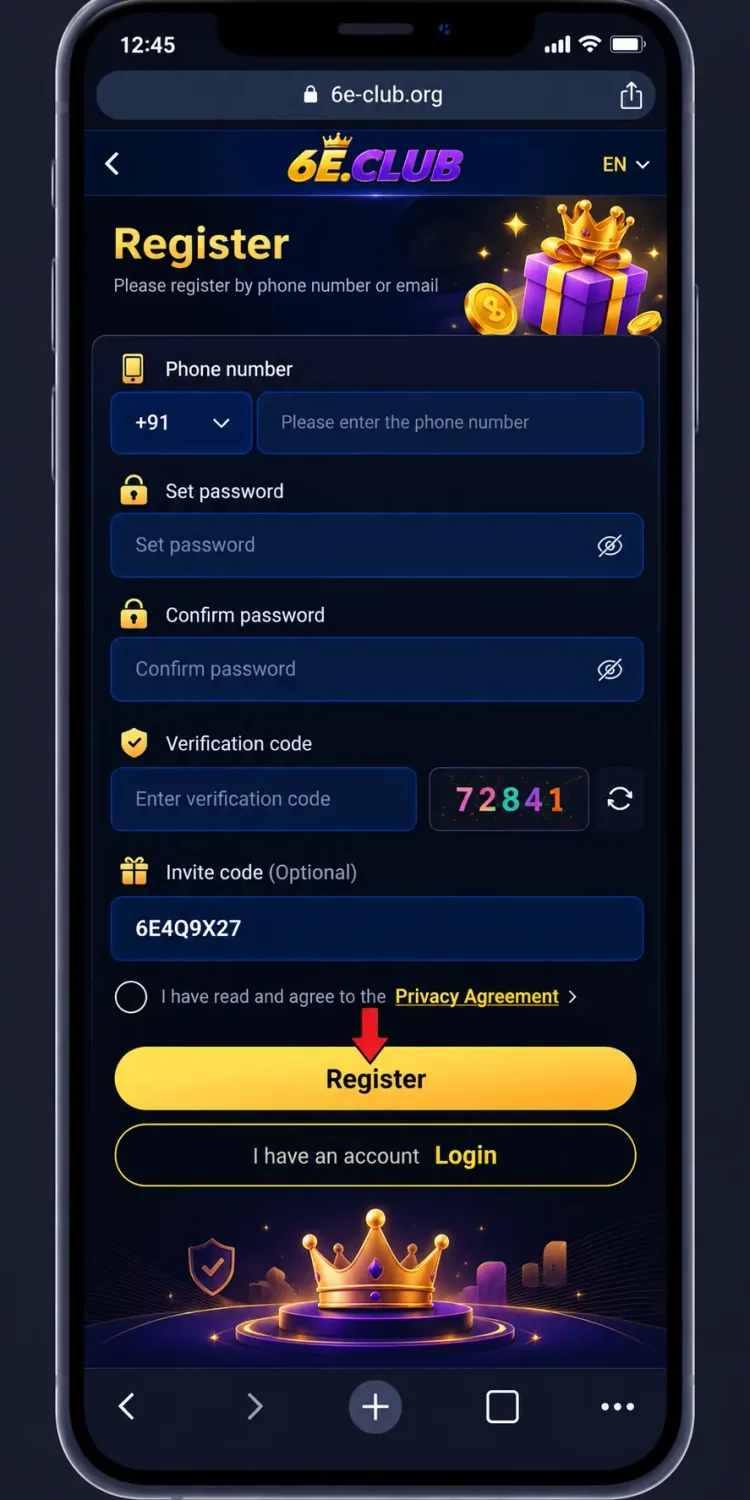
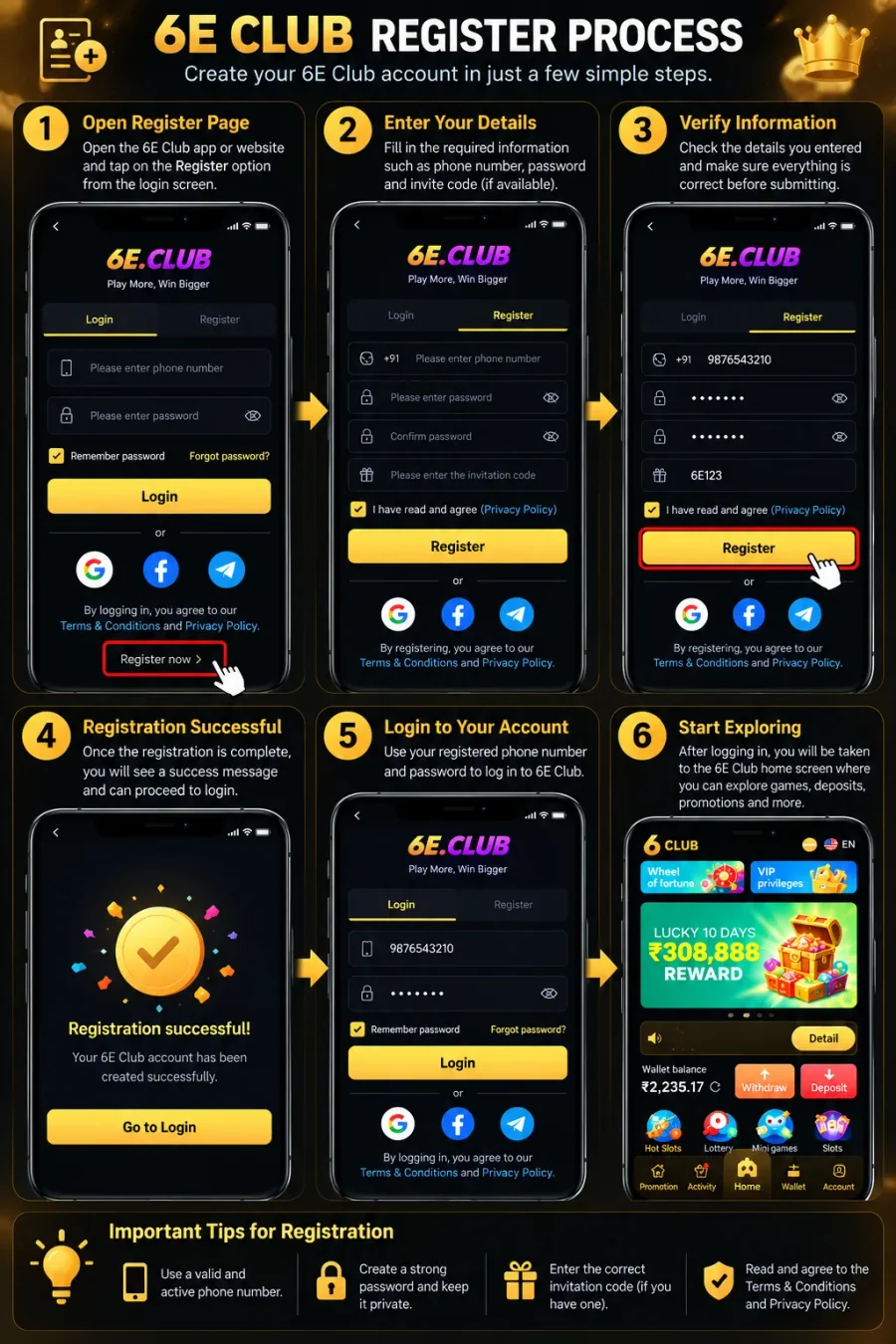

6E Club registration infographic guide

Guide · 2026

6E Club Register: Step-by-Step Account Creation Guide

Creating a new account should not be complicated, but it helps to know what to check before you start. This guide walks through registration, common sign-up problems, and important checks before sharing your information.

Ready to create an account?

Open the live register page in a new tab, then follow the steps on this guide.

Open 6E Club Register

Before You Register

Before opening a registration form, check that you are using the website you intended to visit.

Similar-looking domains, copied page designs, and links shared through unfamiliar messages can make it difficult to identify the correct source.

Read the available terms and privacy information before submitting personal details. Check what information the form requests, which fields are mandatory, and whether any conditions apply to creating an account.

You should also have access to the contact details you choose to provide, if the form requests them. If the website asks for a verification code, enter it only into the expected registration flow. Never share passwords or one-time codes with another person.

Already have an account?

Visit the 6E Club login guide instead of creating another account unnecessarily.

6E Club Register, Step by Step

The following steps explain the general registration workflow. Always check the exact form and requirements on the current, verified website.

  1. Step 1: Open the Registration WebsiteStep 1 of 5

    Open the Registration Website

    Open the website address you have independently verified. Check the domain carefully before entering personal information, especially if you arrived through an advertisement, social media post, or message. If the address redirects to an unfamiliar domain or displays unexpected download prompts, stop and verify the destination first. Then look for the Register / Sign up option on that page — use the control on the verified site, not an unconfirmed link from a chat group.

    Open register page

  2. Step 2: Find Register and Read the FormStep 2 of 5

    Find Register and Read the Form

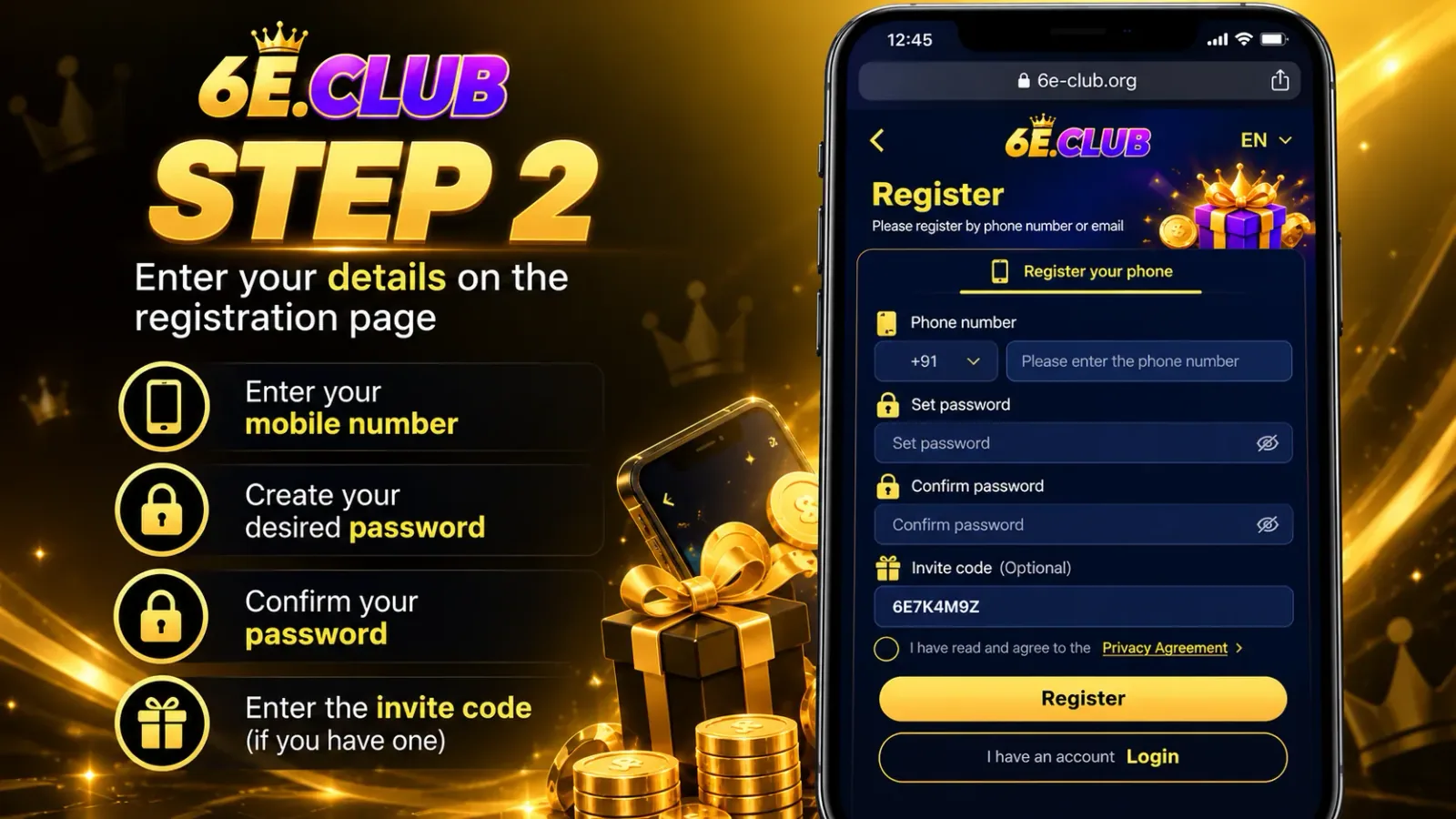
    Find the registration option and review every field before typing. Check which details are required and whether the page explains formatting or verification. Do not assume that a particular mobile number format, email address, referral code, or identity document is mandatory unless the actual form confirms it.

  3. Step 3: Enter Details and Complete VerificationStep 3 of 5

    Enter Details and Complete Verification

    Fill in only the required fields with information that belongs to you. Check for typing errors. If a field shows an error, read the message and fix that field instead of submitting repeatedly. If the page offers email, phone, or OTP verification, follow its on-screen instructions. Never share a verification code with anyone claiming they can register for you.

  4. Step 4: Review, Submit, and Wait for ConfirmationStep 4 of 5

    Review, Submit, and Wait for Confirmation

    Review everything you entered, read the terms, then submit once using the button on the page. Wait for the response — do not click repeatedly. If an error appears, note the message. A refreshed page alone does not always mean success; look for a clear confirmation before you assume the account was created.

  5. Step 5: Sign In After RegistrationStep 5 of 5

    Sign In After Registration

    When registration succeeds, you may be taken to login or asked to sign in next time. Use the same username and password on the verified login page. Already registered? Open the login guide instead of creating another account.

What Information Do You Need?

There is no single set of registration fields that applies to every online service. The actual form determines what is required.

Required fields

Identify which fields the form marks as mandatory before you submit.

Contact information

Make sure any requested email address or phone number is accurate and yours.

Password requirements

Follow the displayed rules and choose a unique password you have not used elsewhere.

Verification & terms

Complete verification only when offered, and read the terms you are accepting.

Avoid sharing extra personal information simply because an unofficial guide or another user suggests it.

Registration on Mobile or Desktop

The registration experience may look different on a phone, tablet, or computer.

A mobile page may arrange fields vertically, while a desktop page may use a wider layout. Regardless of the device, check the website address before entering information and read the form’s instructions carefully.

If the page does not display correctly, try an updated browser or check your connection. Avoid installing an APK just to complete registration unless you have independently verified that the application is genuine and necessary. Do not disable your device’s security protections to access a registration page.

Browser / home-screen tips on the homepage →
6E Club registration on a mobile screen

Finding a Trustworthy Registration Page

Check the complete domain name in the address bar.
Be cautious of unexpected redirects to unrelated domains.
Review privacy policy, terms, and contact information.
Avoid downloads offered through suspicious pop-ups.
Do not trust a page solely because colours or logos look familiar.
HTTPS helps protect traffic, but does not prove legitimacy alone.

If you cannot verify the source

Do not submit your information. Return later with a bookmark you created yourself.

When Registration Fails

A failed registration does not always mean your details are incorrect. The issue could relate to the form, browser, connection, or a temporary service problem.

The registration page will not open

Check the website address and your internet connection. Try again after a short wait or use an updated browser. If the page repeatedly redirects or shows unexpected security warnings, stop and verify the source.

The verification code does not arrive

Confirm whether the process actually requested a code. Check that your contact information is correct, wait for the delivery period shown on the page, and never share any received code with another person.

Invalid information error

Read the exact error message and check the field it identifies. Look for spelling mistakes, extra spaces, or formatting instructions beside the field.

Submission fails

Check for an error message or interrupted connection. Wait for the response before trying again — repeated clicks can create duplicate attempts if the first request already succeeded.

Website says an account already exists

You may have registered earlier. Use the verified login or recovery option instead of creating a duplicate with someone else’s details.

Redirected to an unexpected page

Do not enter your password or OTP into an unfamiliar destination. Return to the verified website. If you already entered sensitive information on a suspicious page, change that password.

What to Do If You Already Have an Account

If you have previously registered, use the platform’s verified login or account-recovery process instead of starting from scratch.

If you cannot remember your password, look for the recovery instructions provided by the actual service. Do not rely on third-party pages that request your password or verification codes.

Keeping Your New Account Safe

Use a unique password

Use a strong password you have not reused elsewhere. A password manager helps store unique credentials.

Protect verification codes

Never share OTPs, recovery codes, or passwords. Only enter a code into the service you intended to access.

Be careful with applications

Verify any APK source before downloading. Review permissions and skip files from pop-ups or unsolicited messages.

Verified support only

Be cautious of anyone requesting passwords, OTPs, payment details, or remote access to your device.

FAQs

Important Information

This article is an independent informational guide. It does not establish that this website is officially affiliated with 6E Club. Platform procedures, website addresses, and requirements may change, so verify current information before submitting personal details, downloading software, or making a payment.

The instructions describe a general online registration workflow. Any platform-specific requirements should be confirmed against the actual registration page.